How to Place a Pre-Order: Dunkin' Proposal Day
This tutorial guides you through placing a pre-order for Dunkin' Proposal Day items on Brandhub!
Go to dunkin.selectbrandhub.com
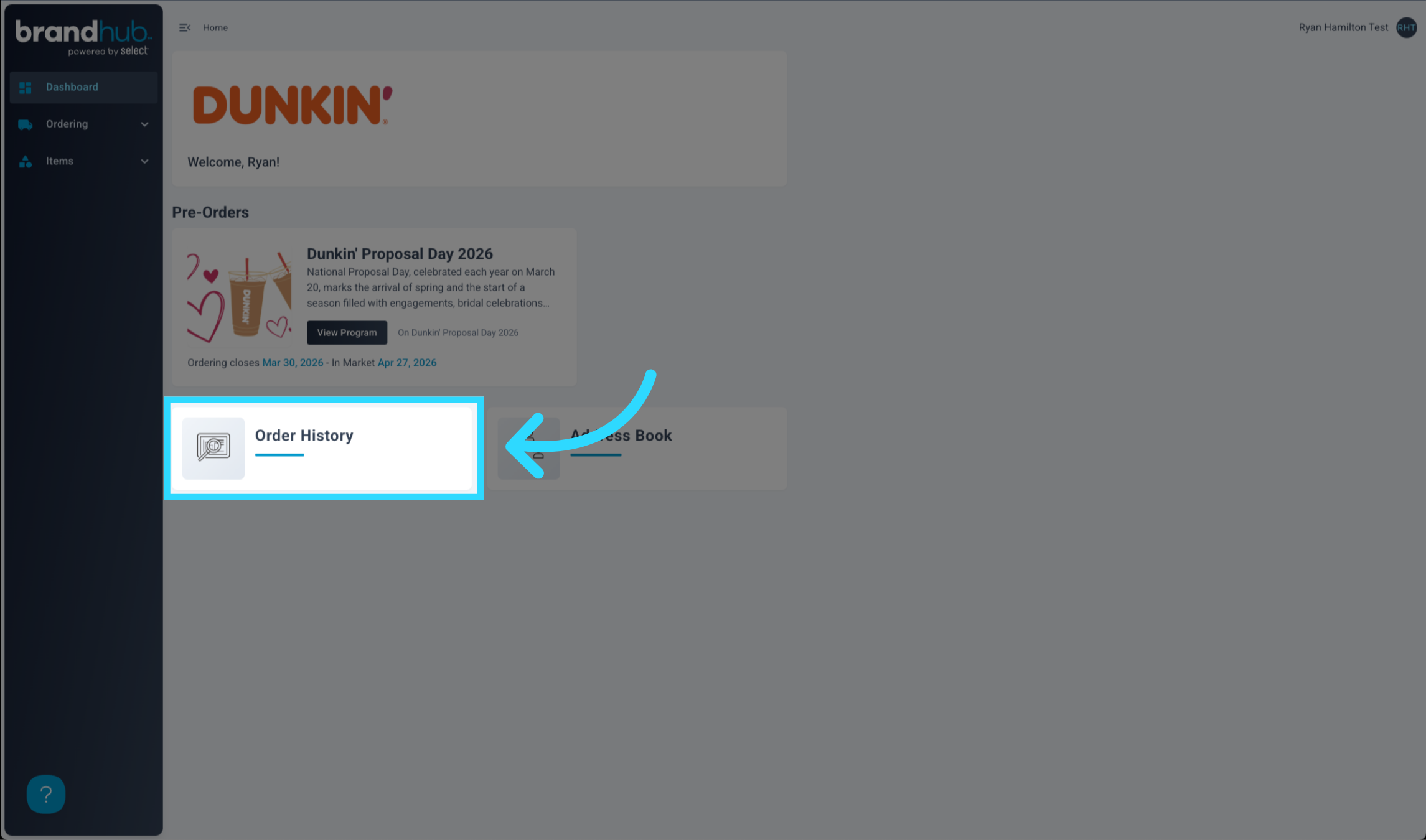
1. The program is Available on the Home Dashboard
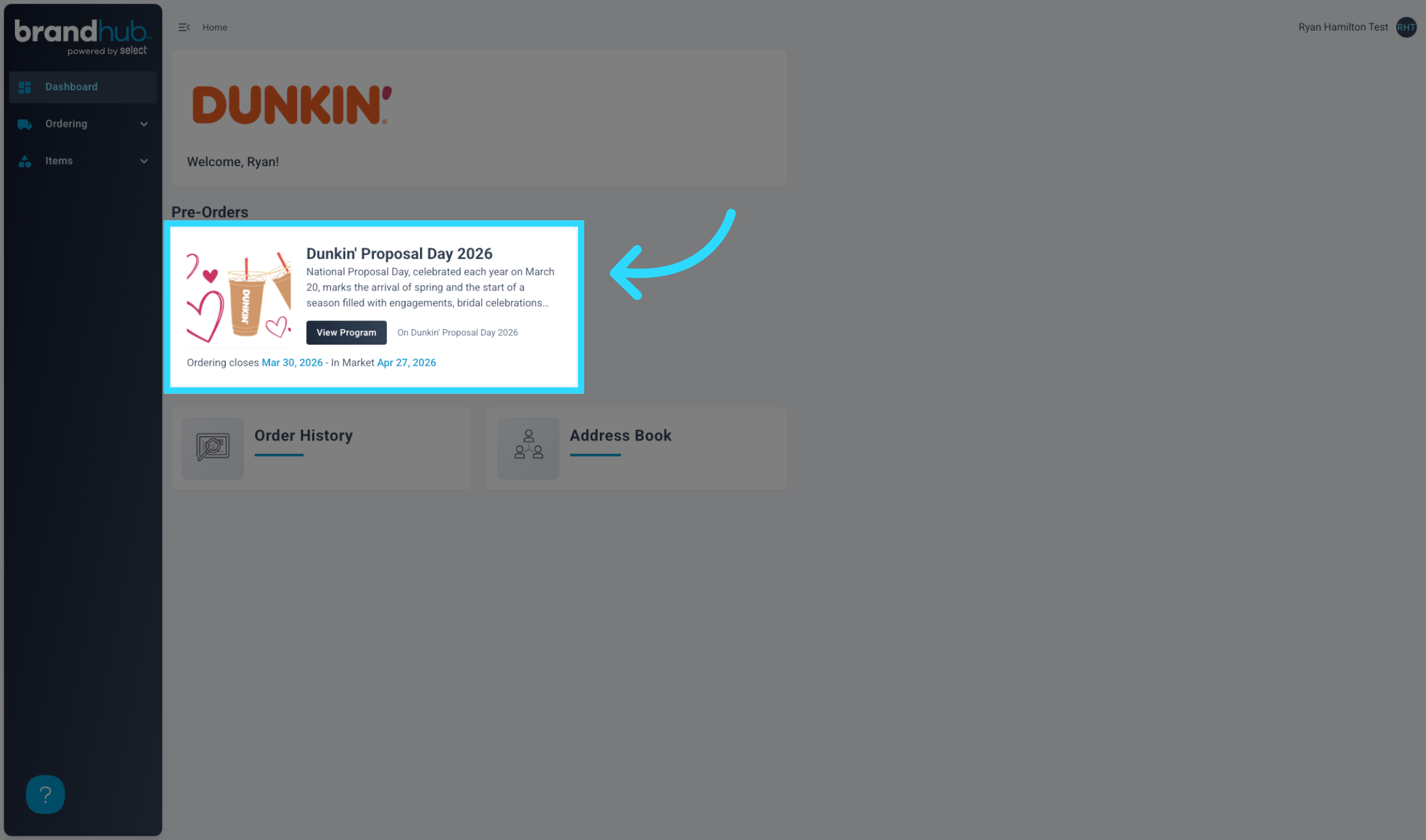
2. View Program Details
Click "View Program" to see details about the program.
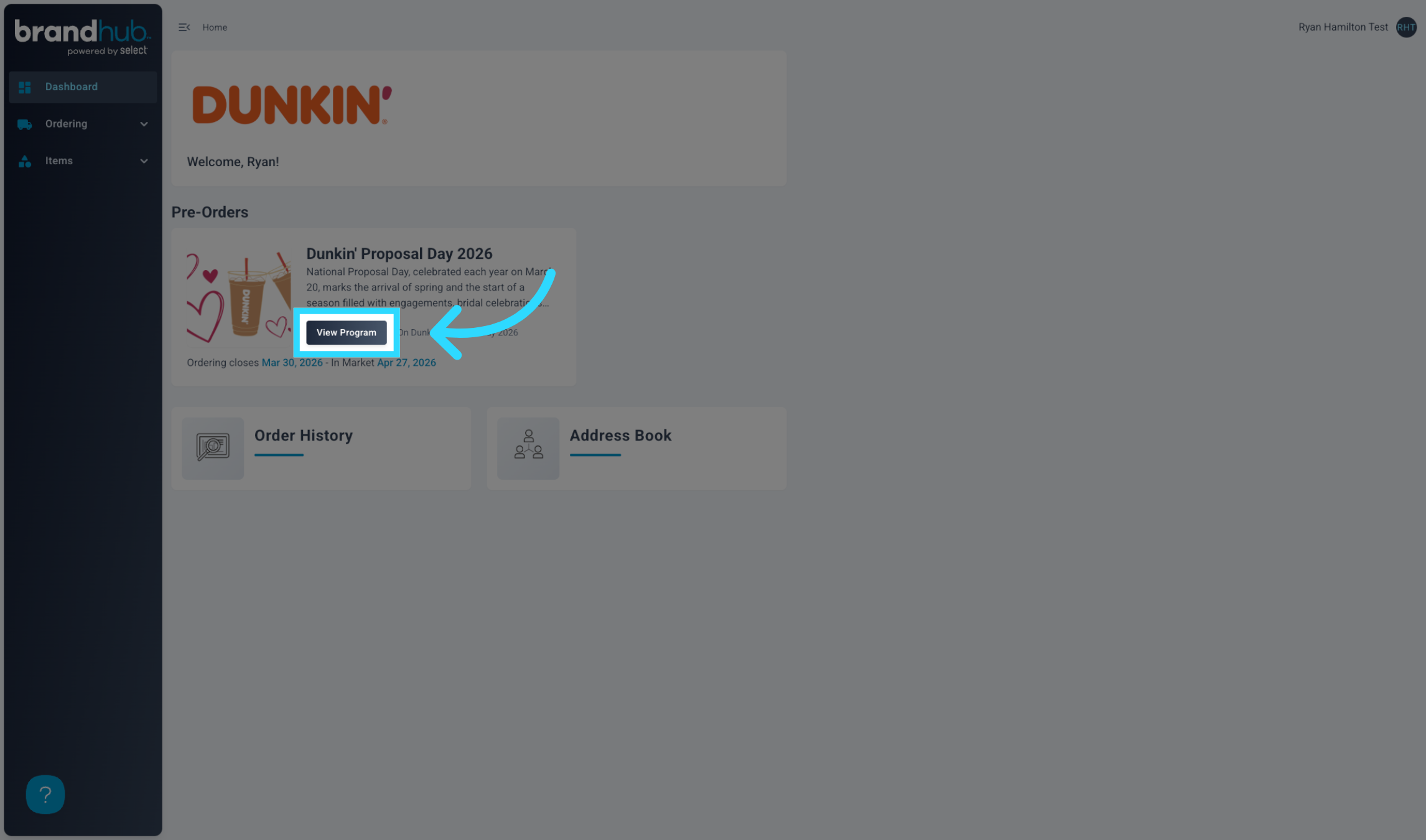
3. Initiate Your Order
Click "Start Order" to begin a new pre-order for the campaign.
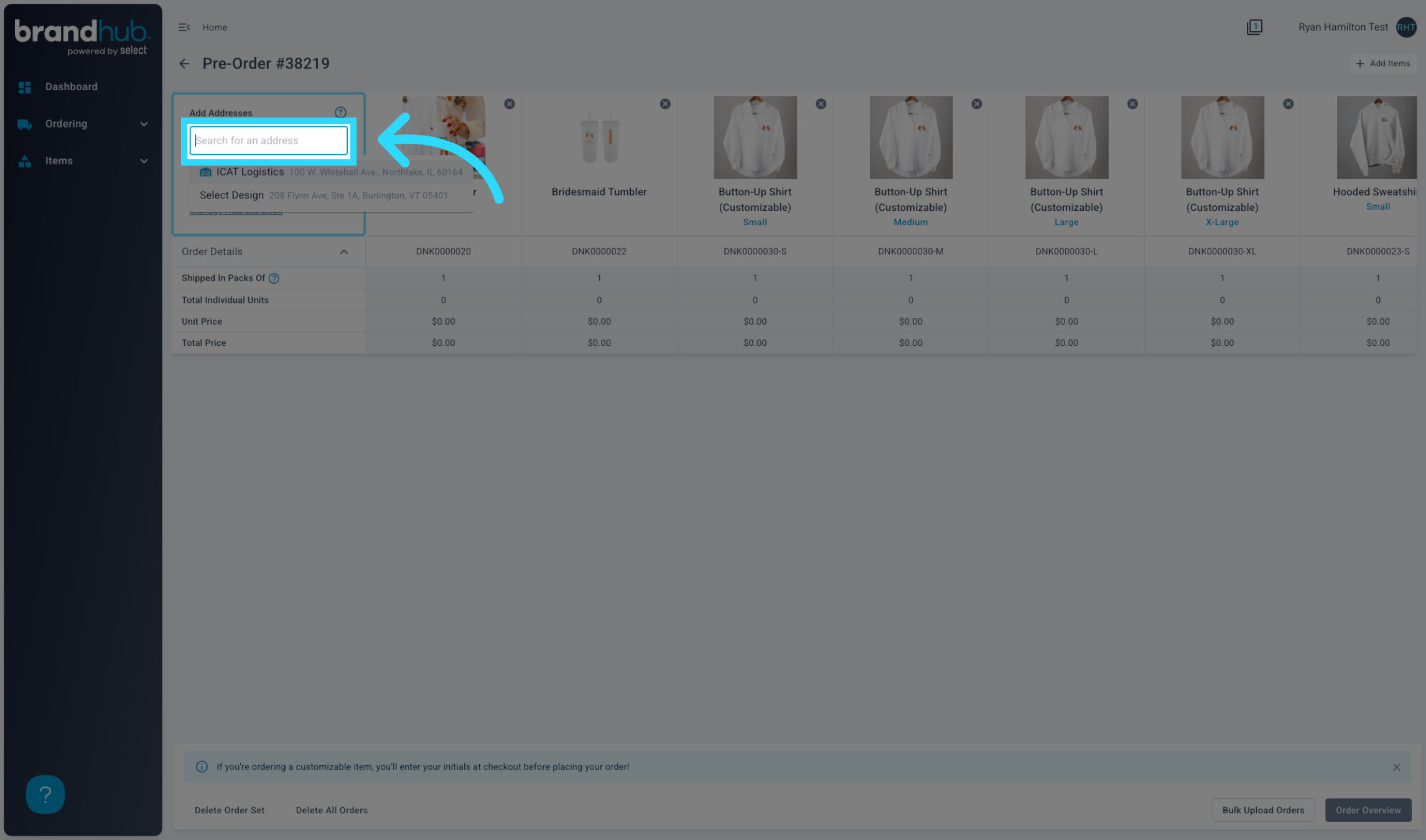
4. Search Existing Addresses
Click "Search for an address" to find an existing delivery location for the order.
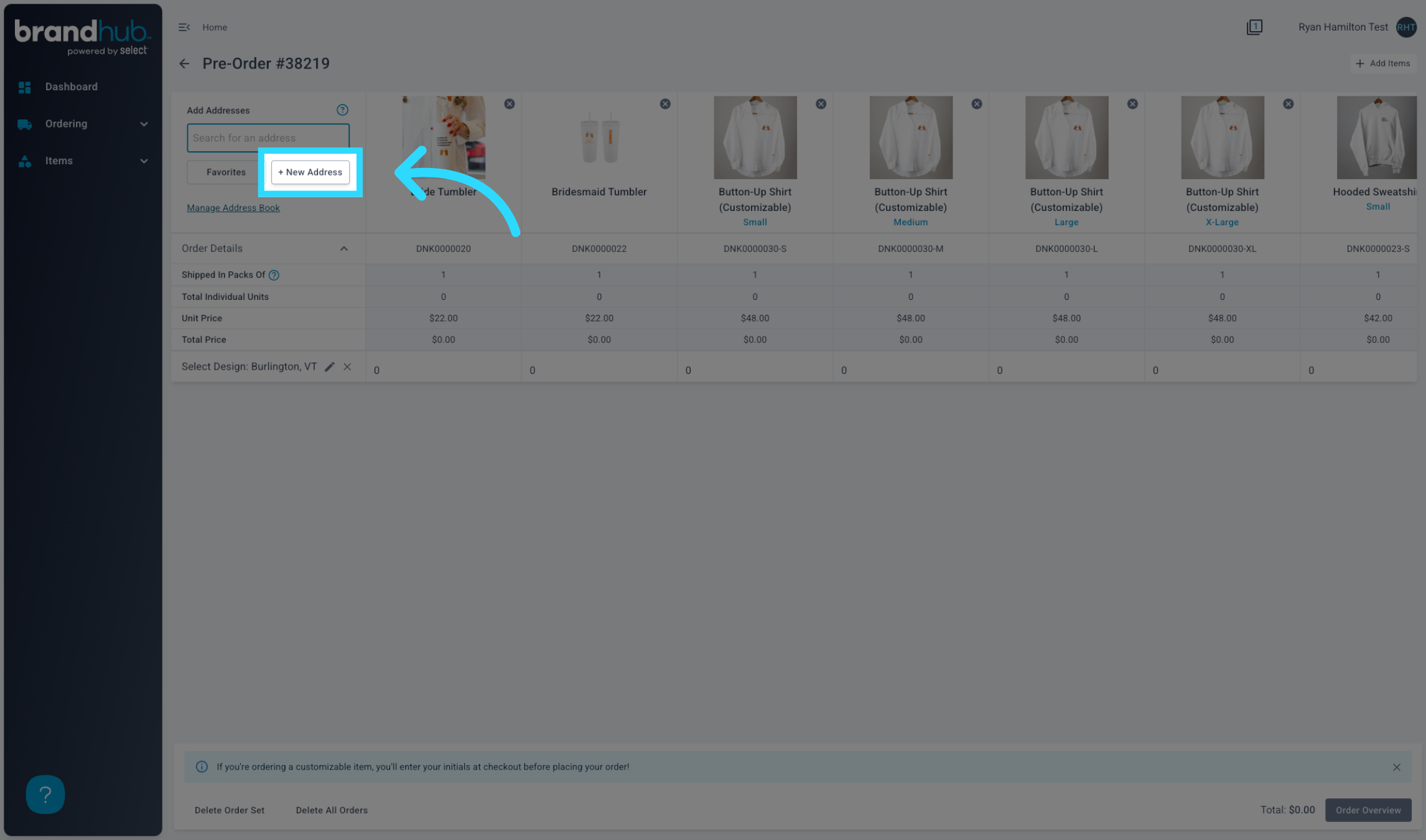
5. Alternatively, Add a New Address
Click "New Address" to enter a new delivery location that is unavailable in the address book.
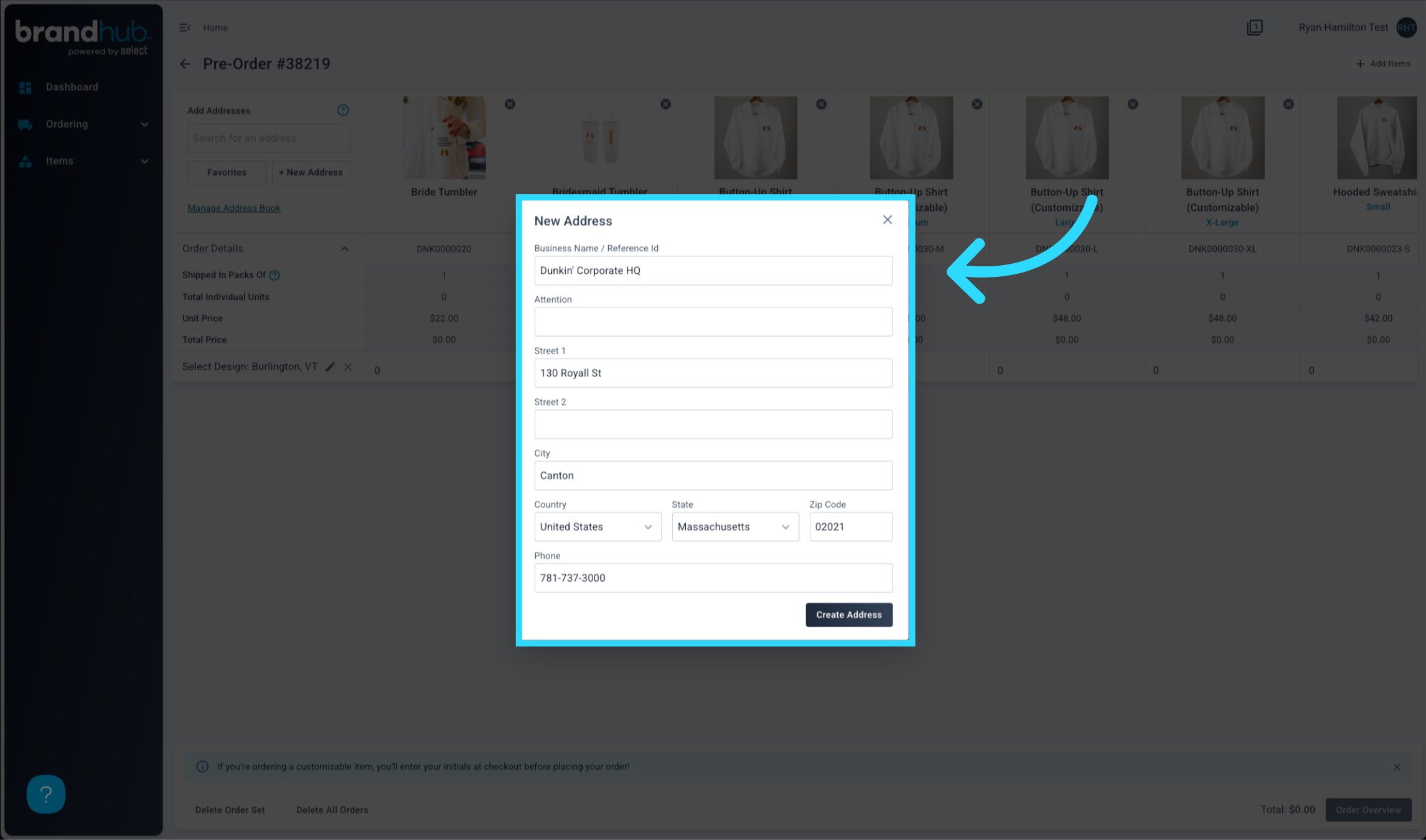
6. Fill in the Address Details
Enter all required information for the address.
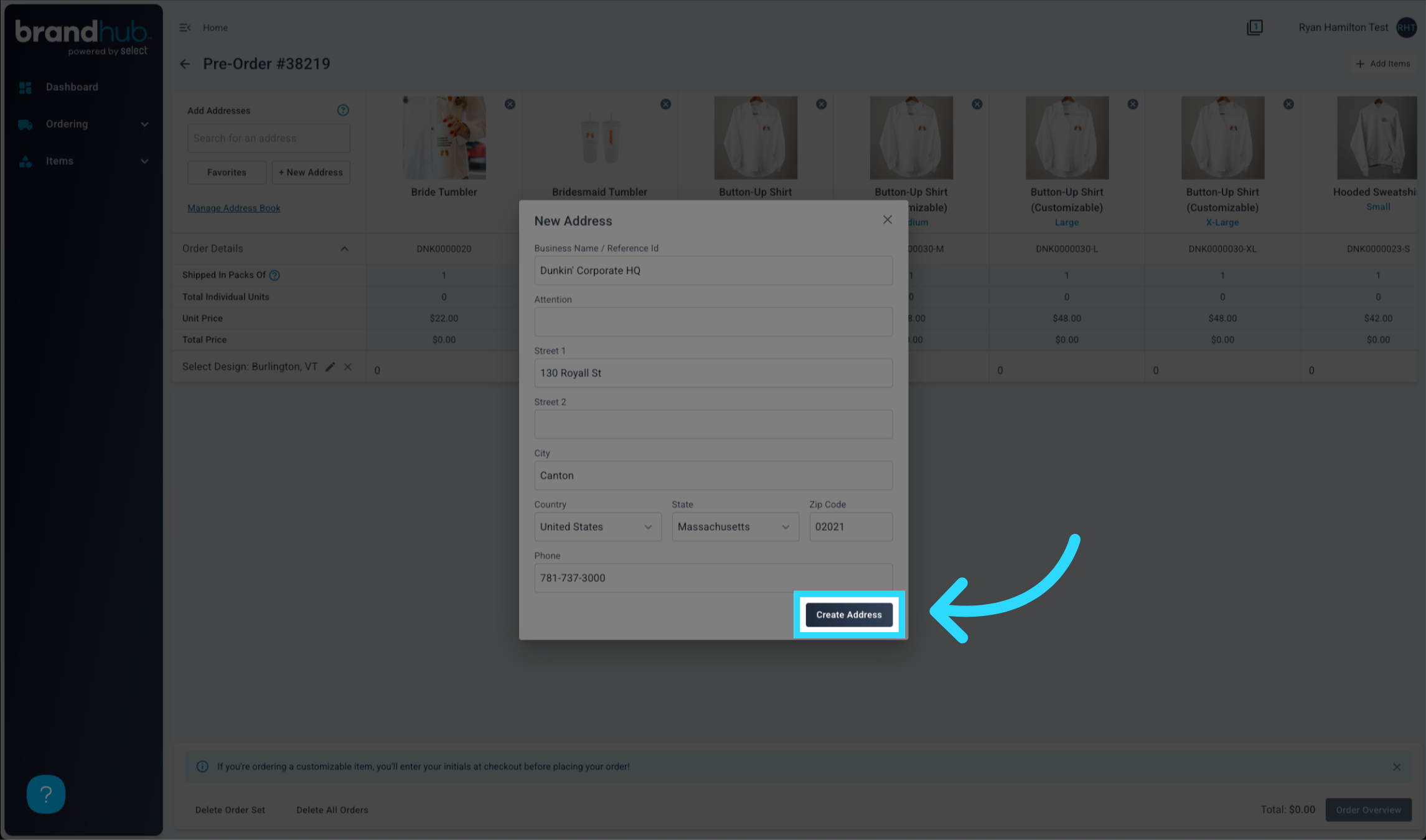
7. Click "Create Address"
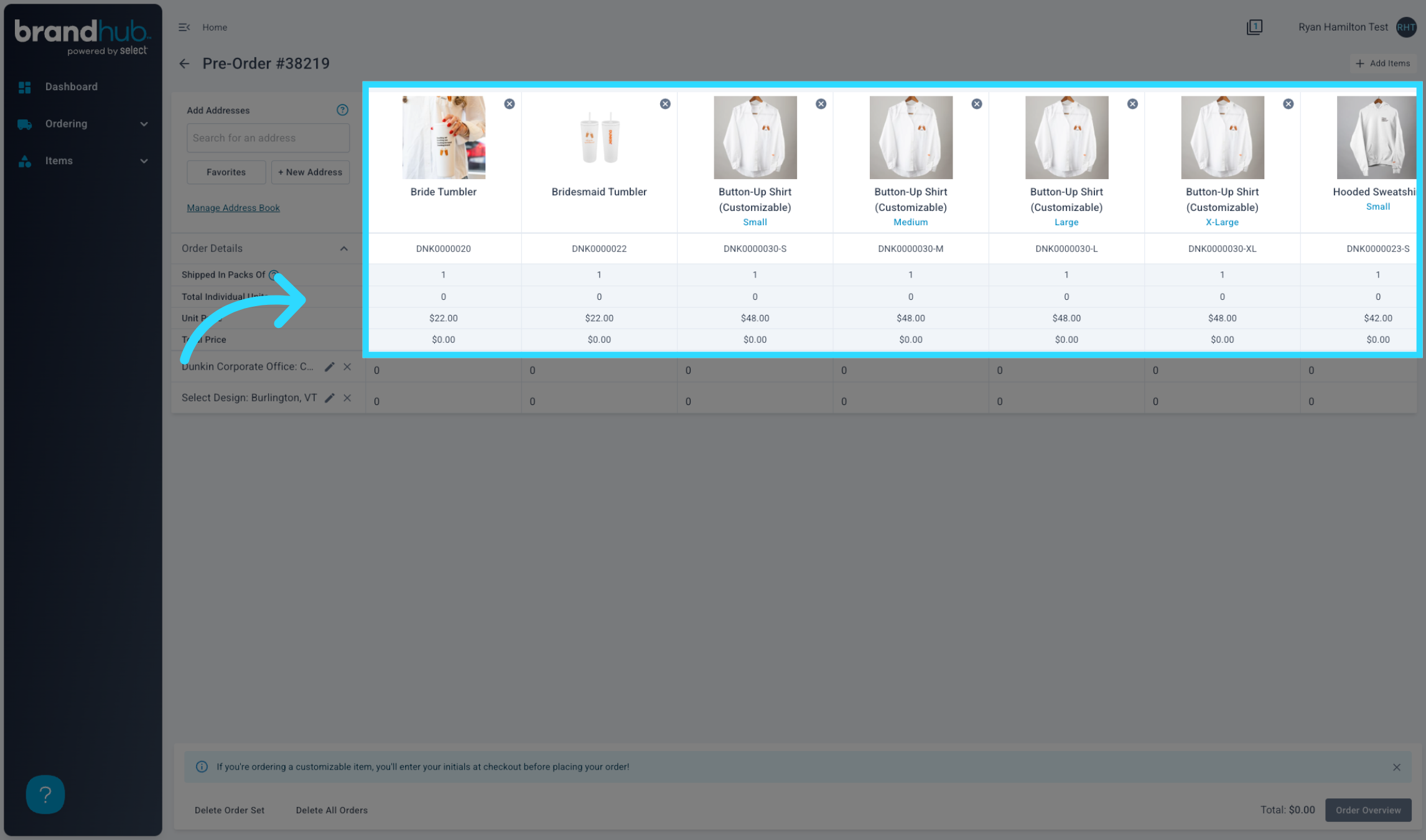
8. All Program Items are Pre-Loaded
If an item on the pre-order has multiple variants, each variant is added to the order form.
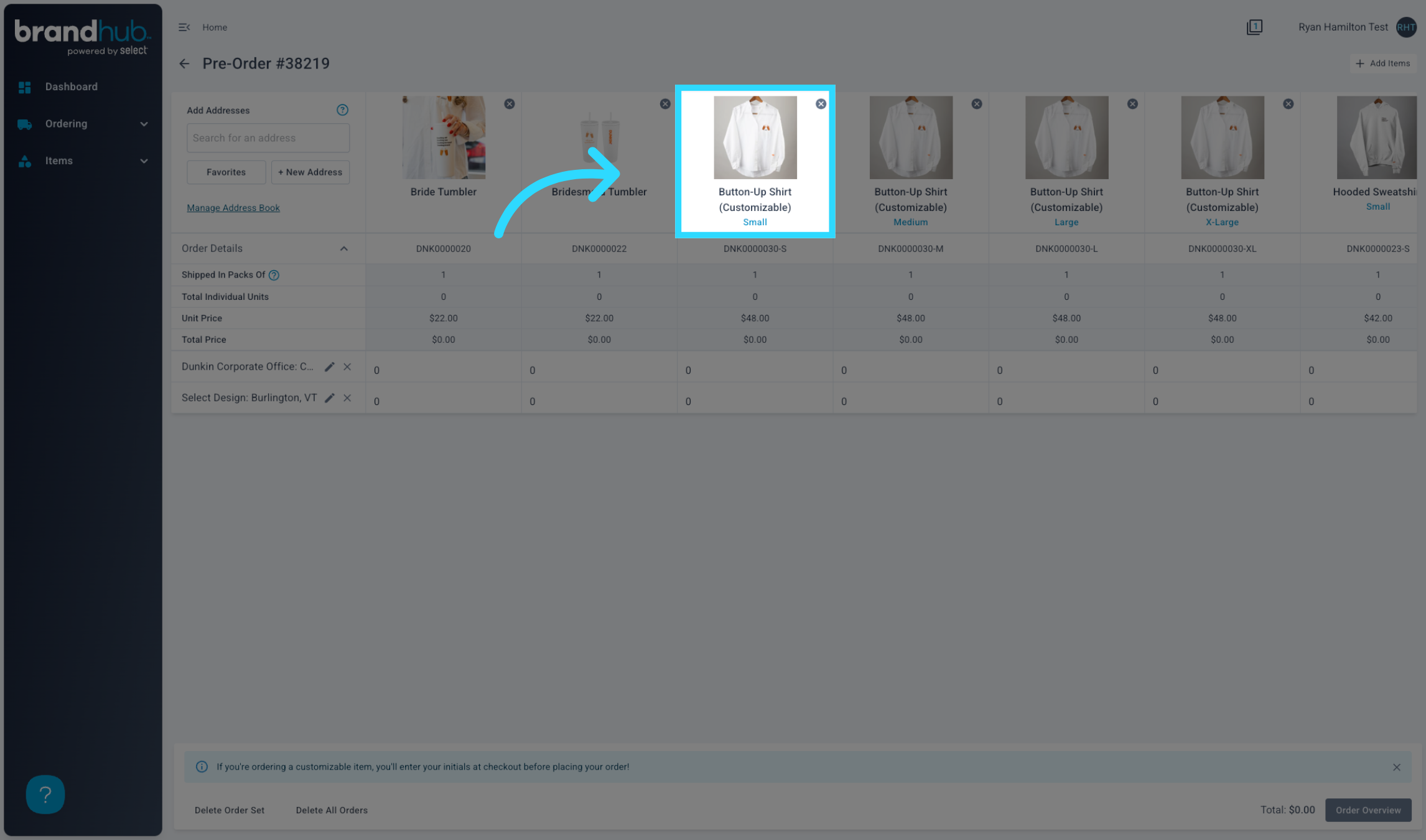
9. Click on an Item to Open a Preview
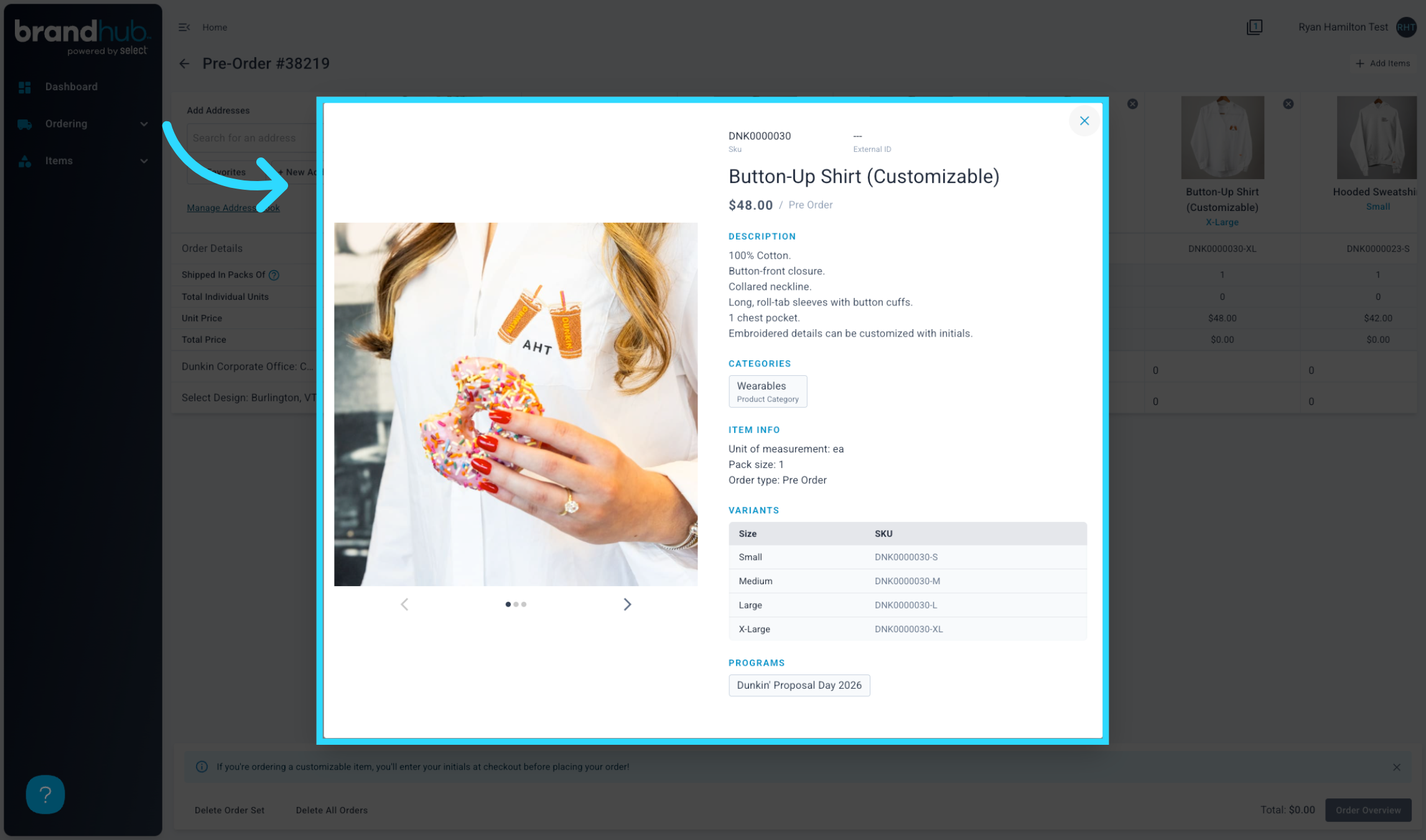
10. View Item Details
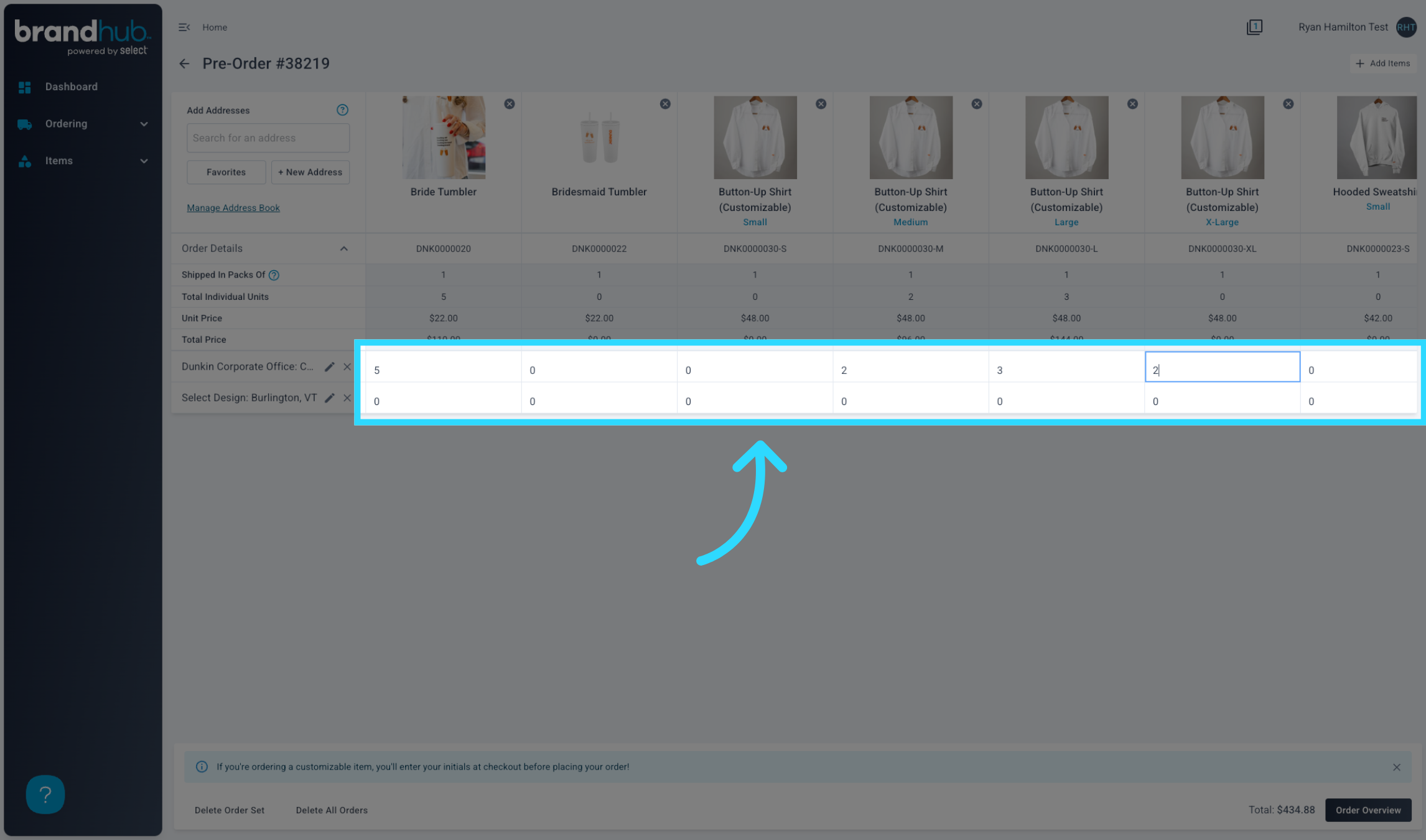
11. Enter Order Quantities
Enter the quantities for each item/variant you would like to order for the corresponding address.
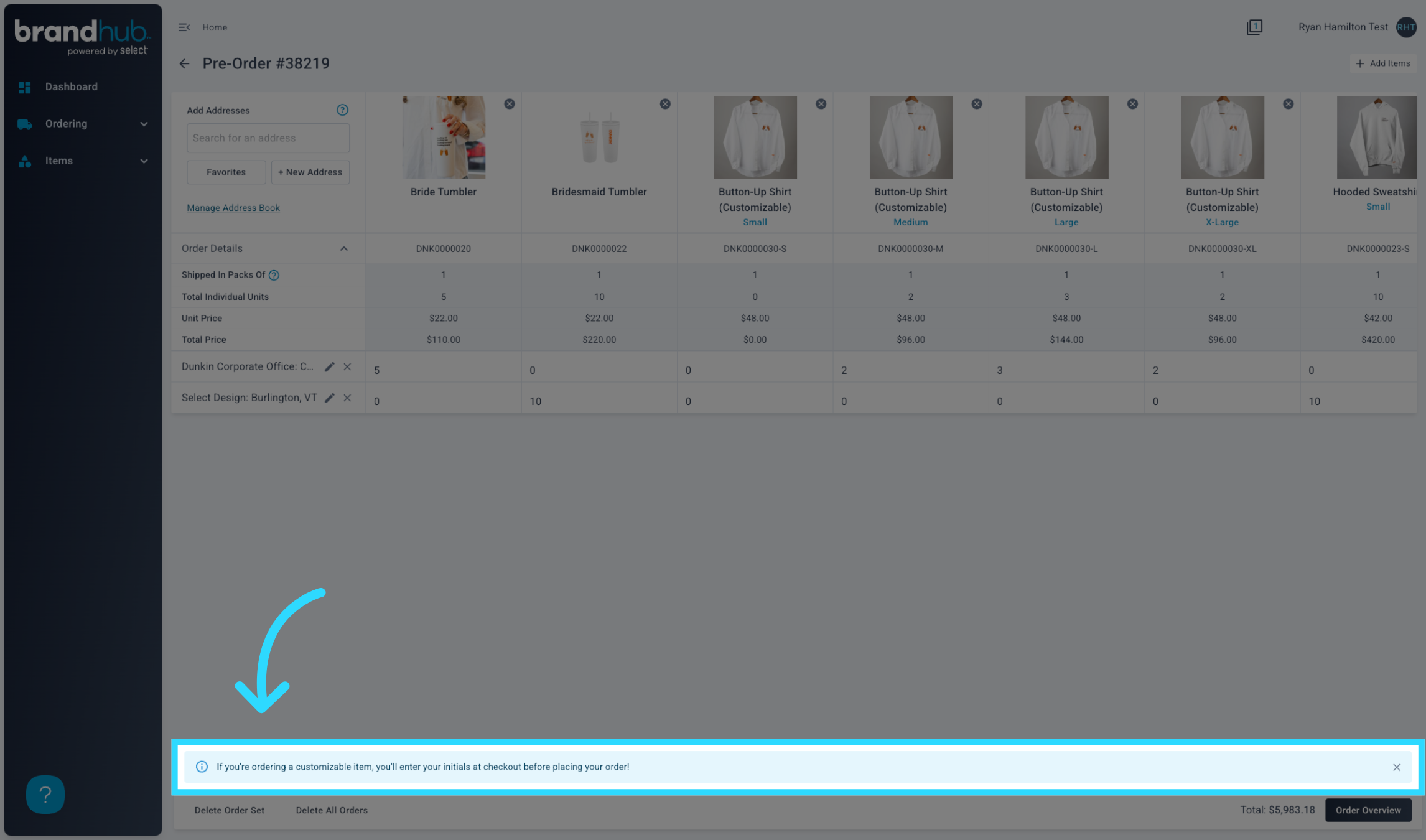
12. View Customization Note
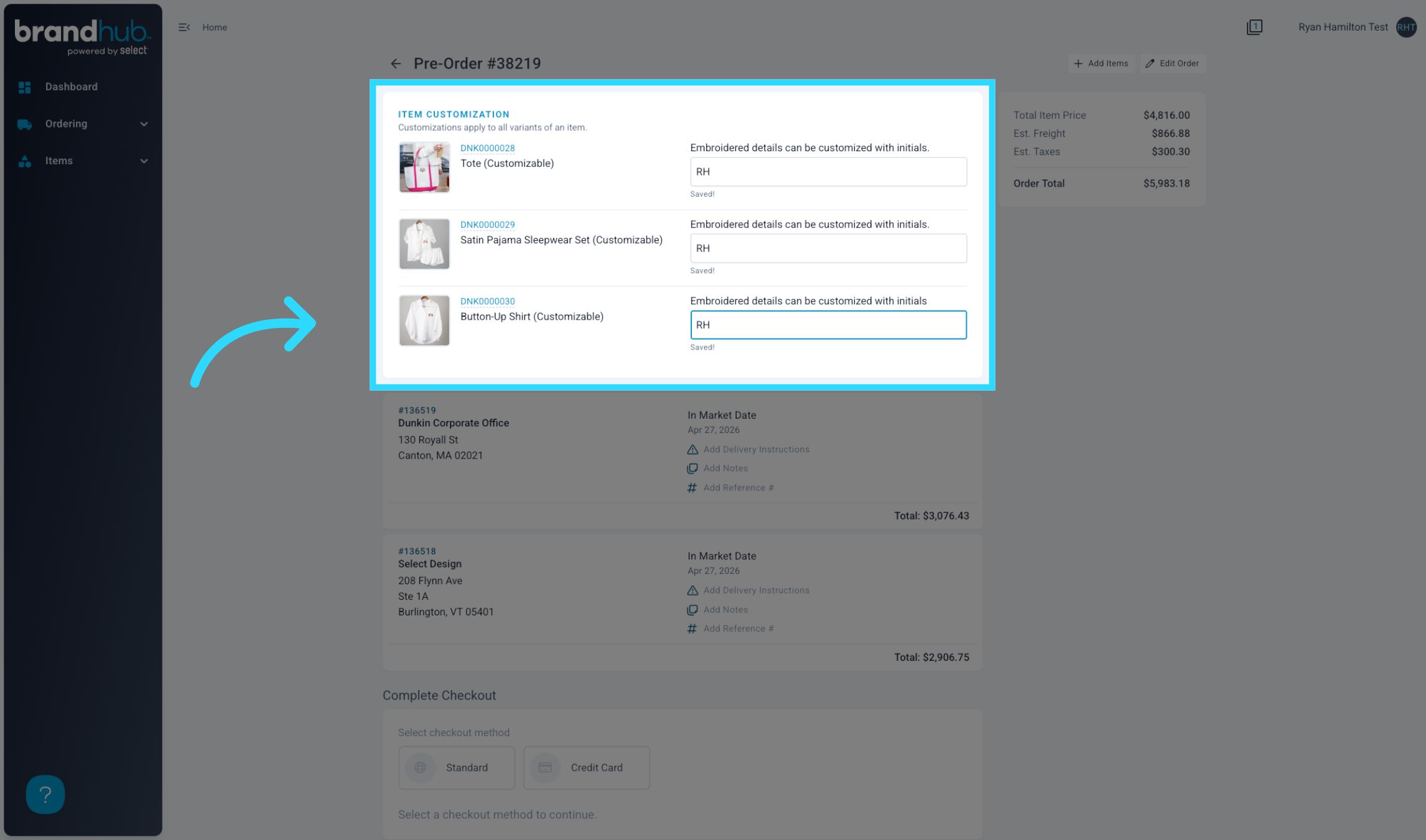
If you're ordering a customizable item, you'll enter your initials at checkout before placing your order!
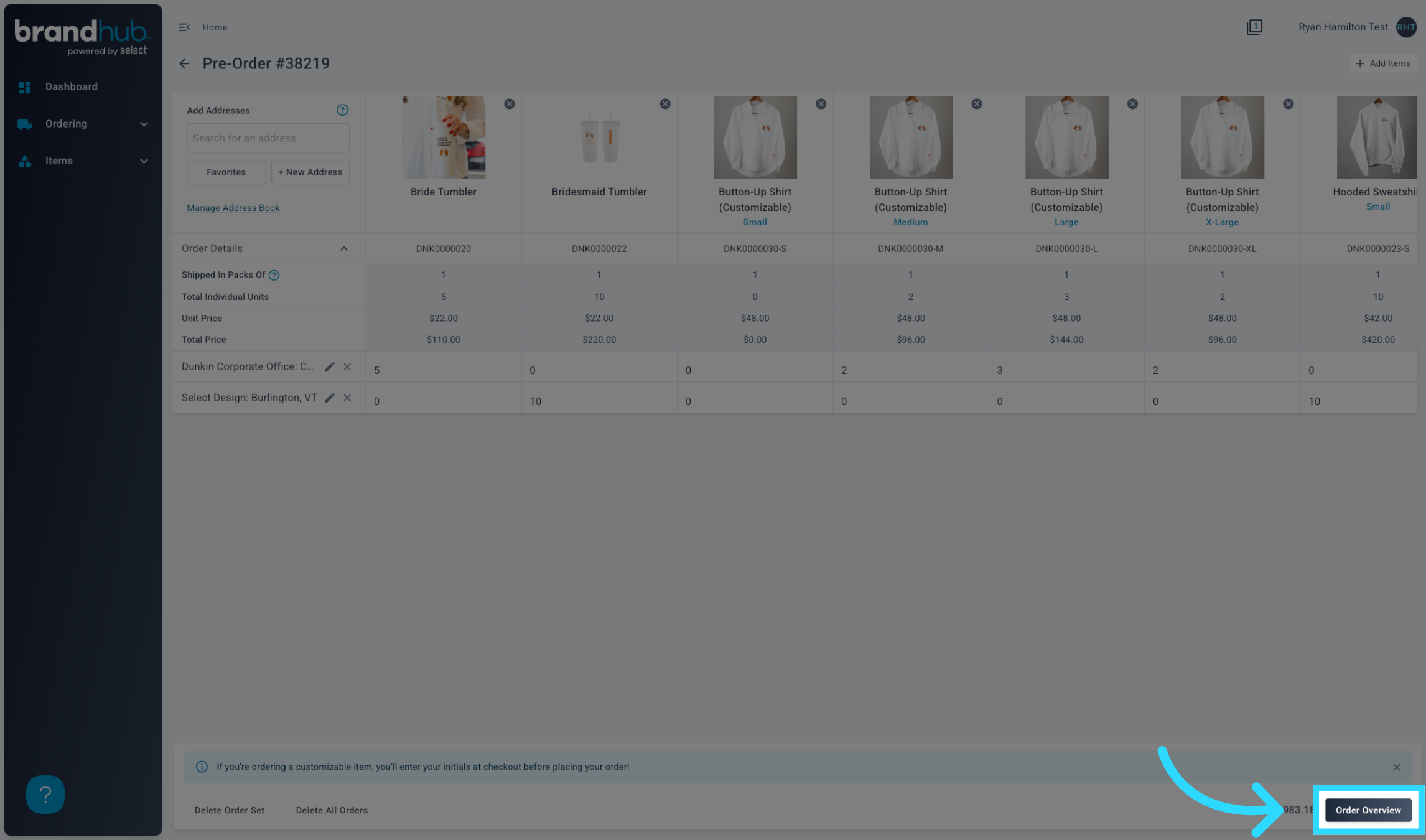
13. Click "Order Overview"
Once you have entered all of the desired quantities, review your order by clicking "Order Overview".
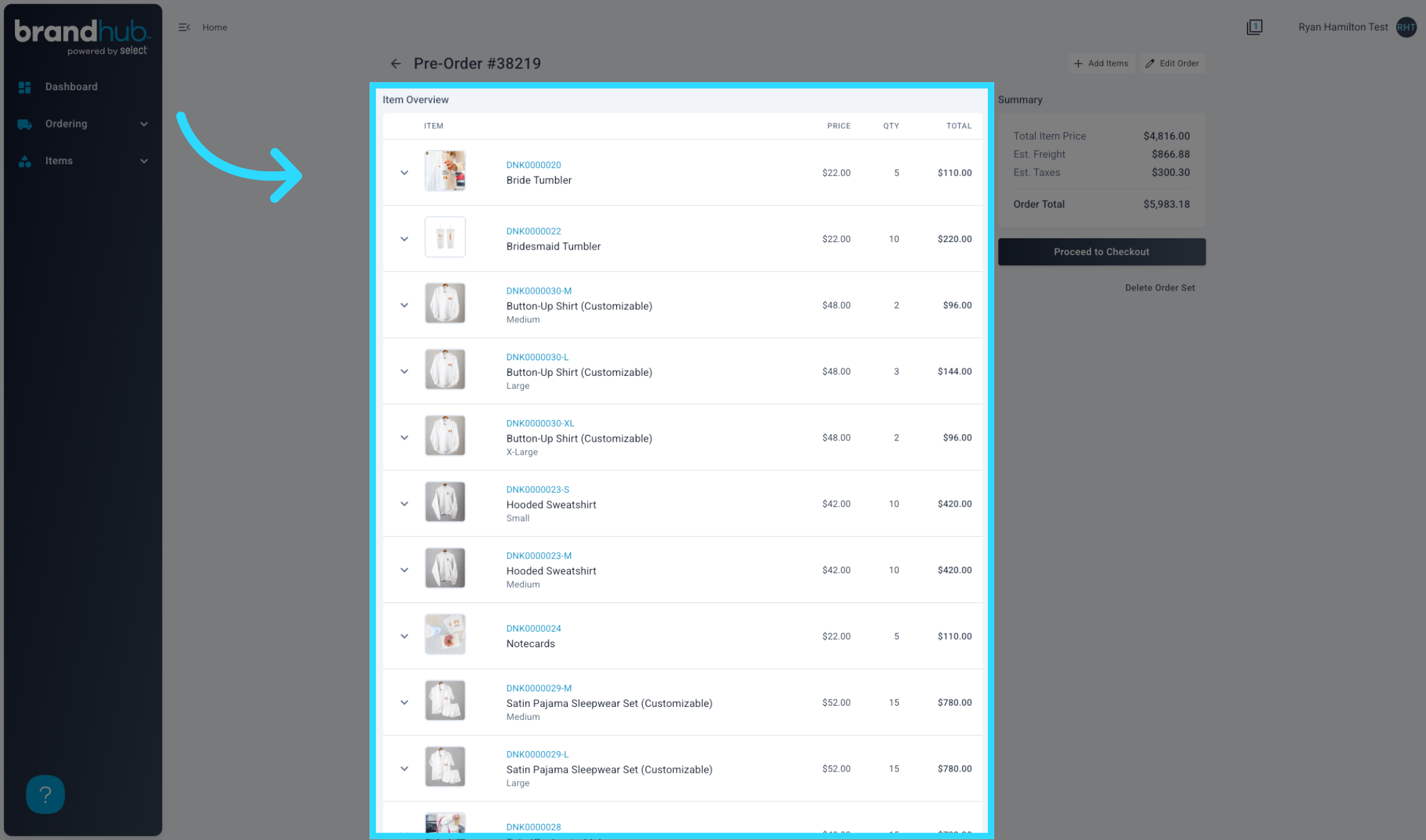
14. Review Your Order Quantities
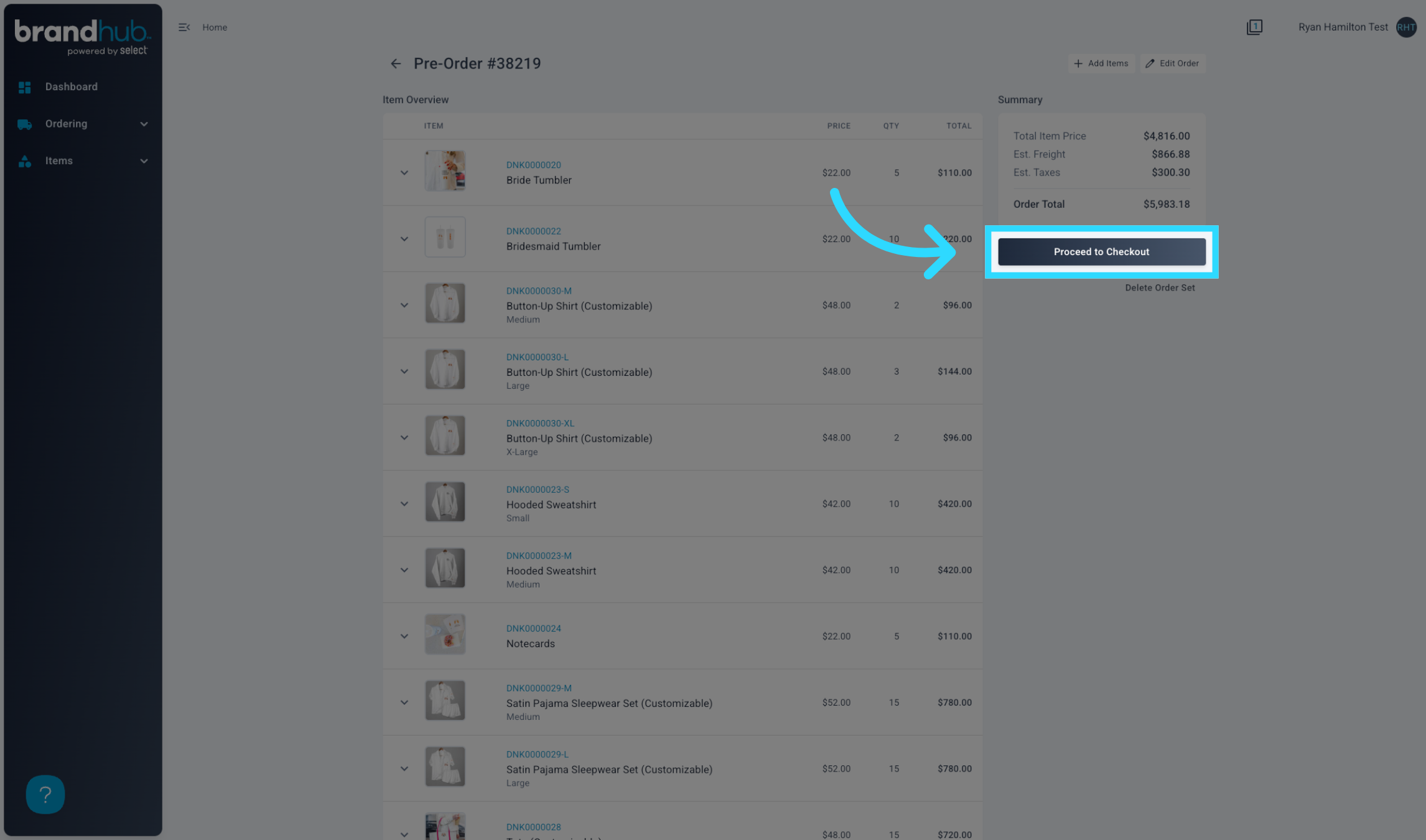
15. Proceed to Checkout
Once you have reviewed your order(s), proceed to checkout.
16. Enter Item Customizations
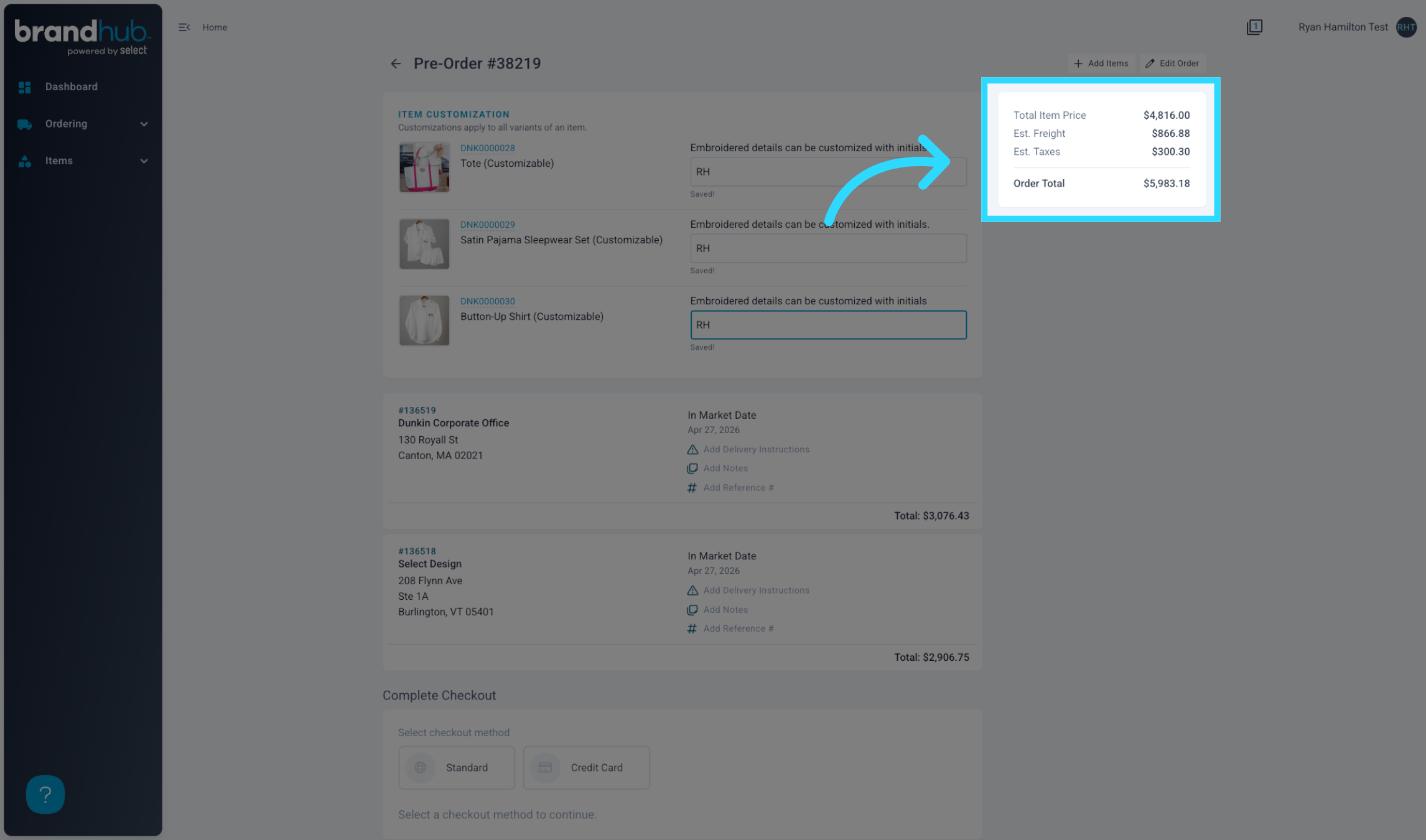
17. Review your Order Summary
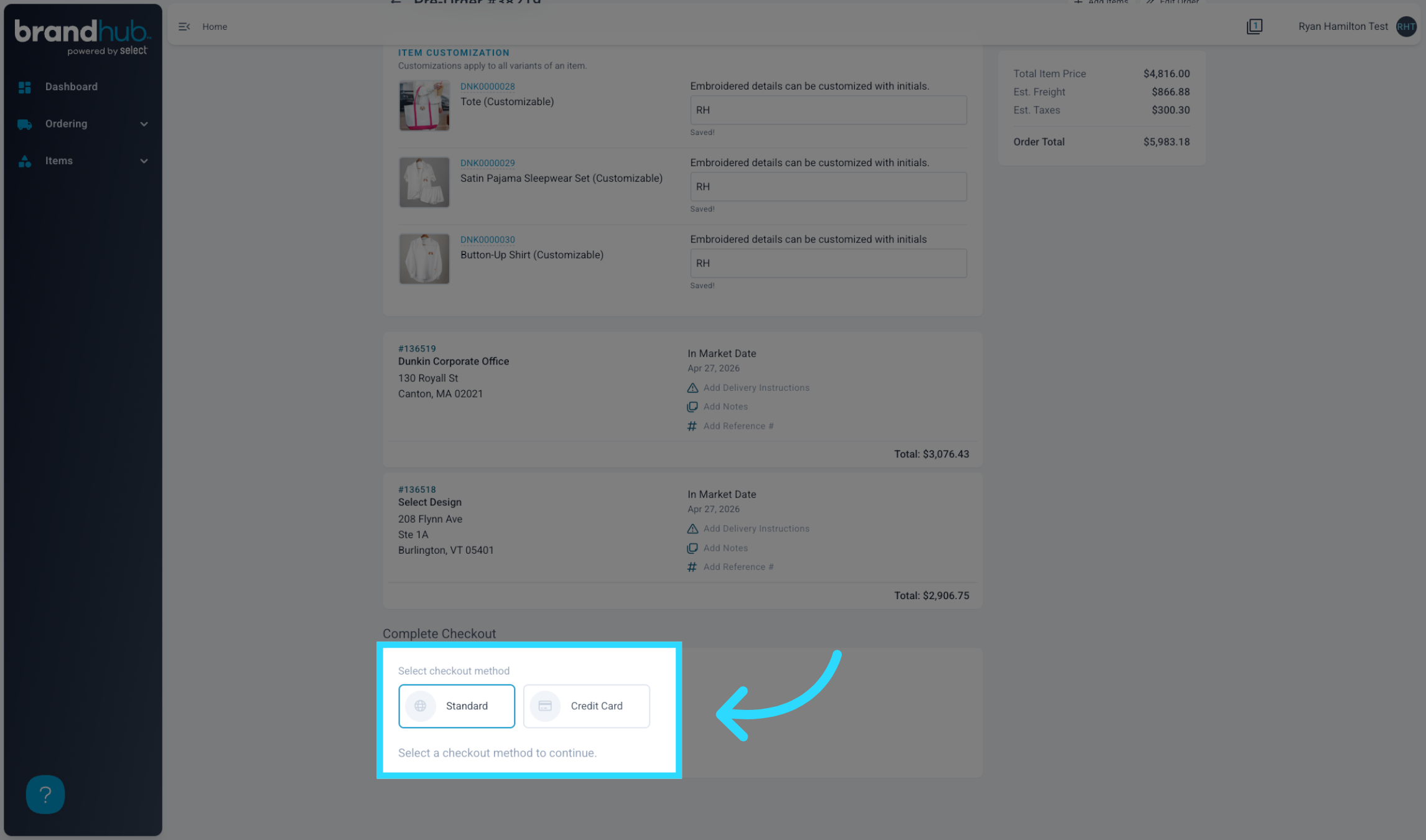
18. Select a Checkout Method
Standard: Invoice will be sent at a later date
Credit Card: Pay now
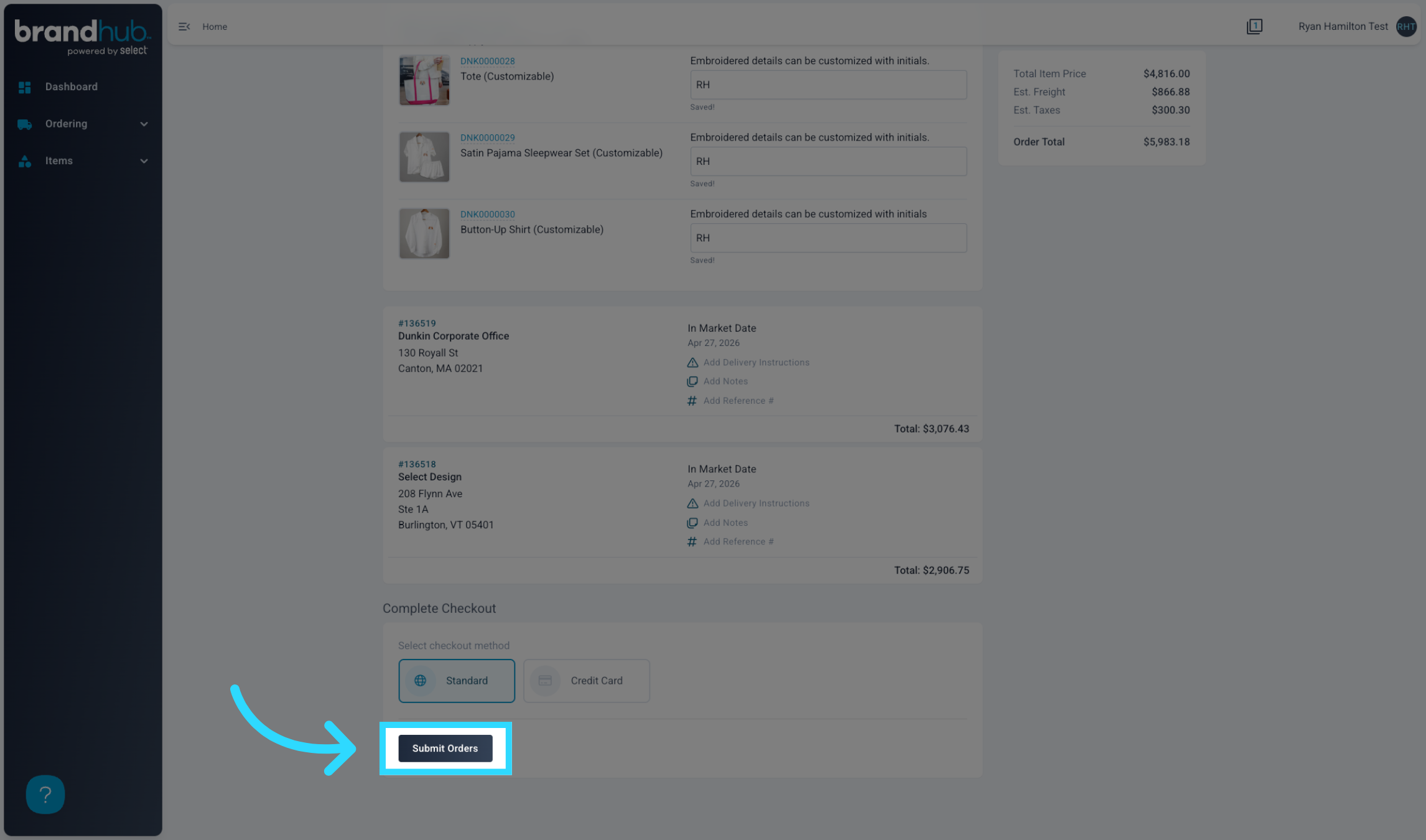
19. Submit Your Orders!
20. View your Order & Tracking in Order History